BPD
Biparietal diameter
The width of your baby's head, measured between the parietal bones on either side.
Across the head; HC measures around it.
More than numbers
Use four measurements to picture your baby's size

Enter your ultrasound measurements to picture your baby's size.
Your ultrasound, explained
Find BPD, HC, FL and AC on your ultrasound report to get started.
This illustration helps you picture size. It doesn't show your baby's actual appearance or assess development.
The width of your baby's head, measured between the parietal bones on either side.
Across the head; HC measures around it.
The distance around the head on a standard ultrasound cross-section.
The circumference, rather than the width.
The length of the shaft of the femur, or thigh bone.
This measures the bone shaft, rather than the whole leg.
The distance around the abdomen on a standard ultrasound cross-section.
The circumference, rather than the width.
Use millimeters (mm). Check your report before entering the measurements.
Source: ISUOG fetal ultrasound measurement guidelinesGet the scale right
Every screen displays images a little differently. Calibrate with a ruler to bring the illustration's scale closer to real-world size on this device.
Create your illustration, then select “Calibrate screen.”
Use a ruler to measure the reference line on screen. Enter its length in millimeters.
Select “Apply calibration,” then “Actual size (100%).” Check the scale bar with your ruler.
A keepsake to hold

Turn off measurement labels, choose “Outline only,” and use the calibrated “Actual size (100%)” view.
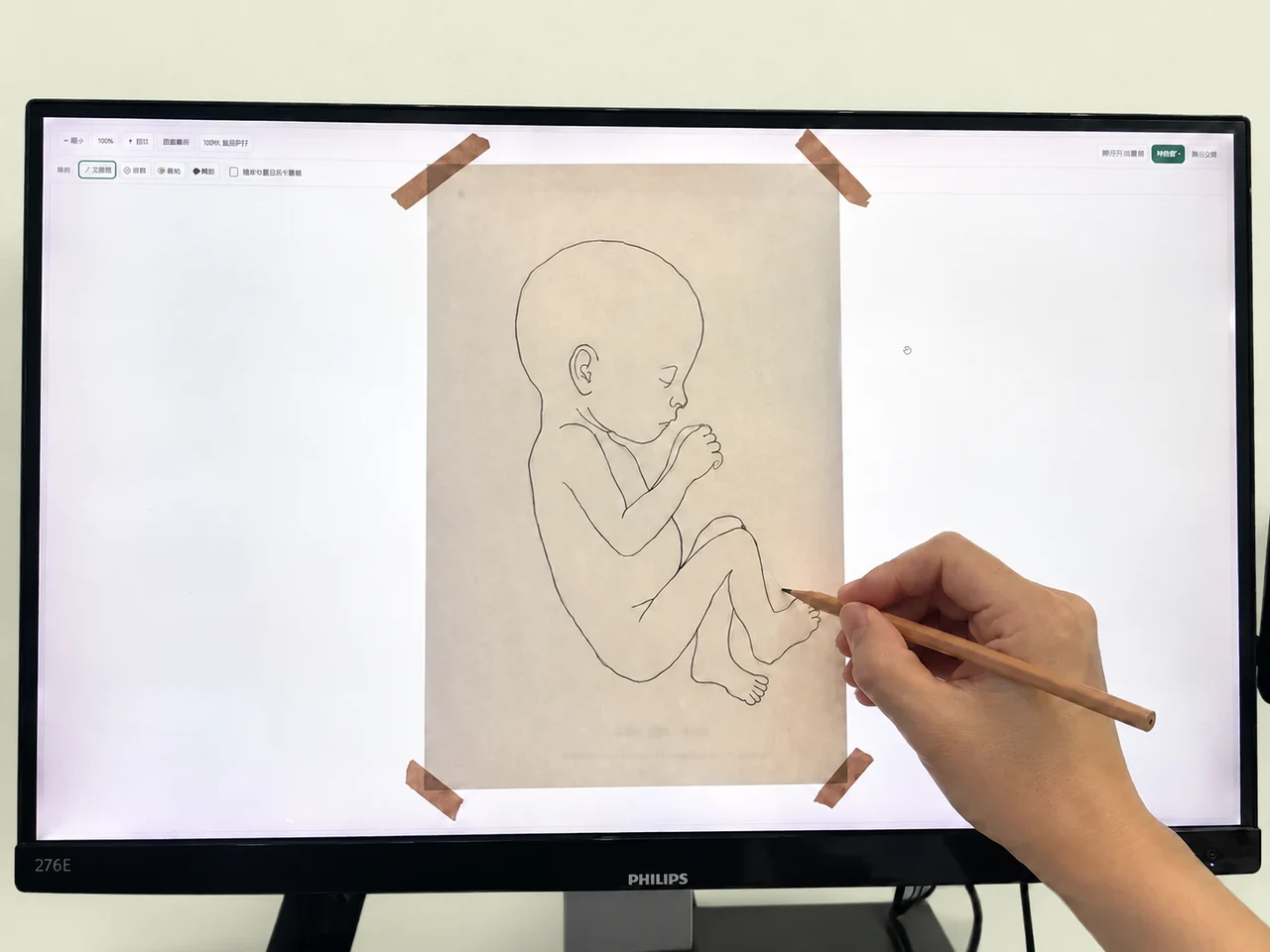
Place a sheet of paper gently against the screen and trace lightly in pencil.
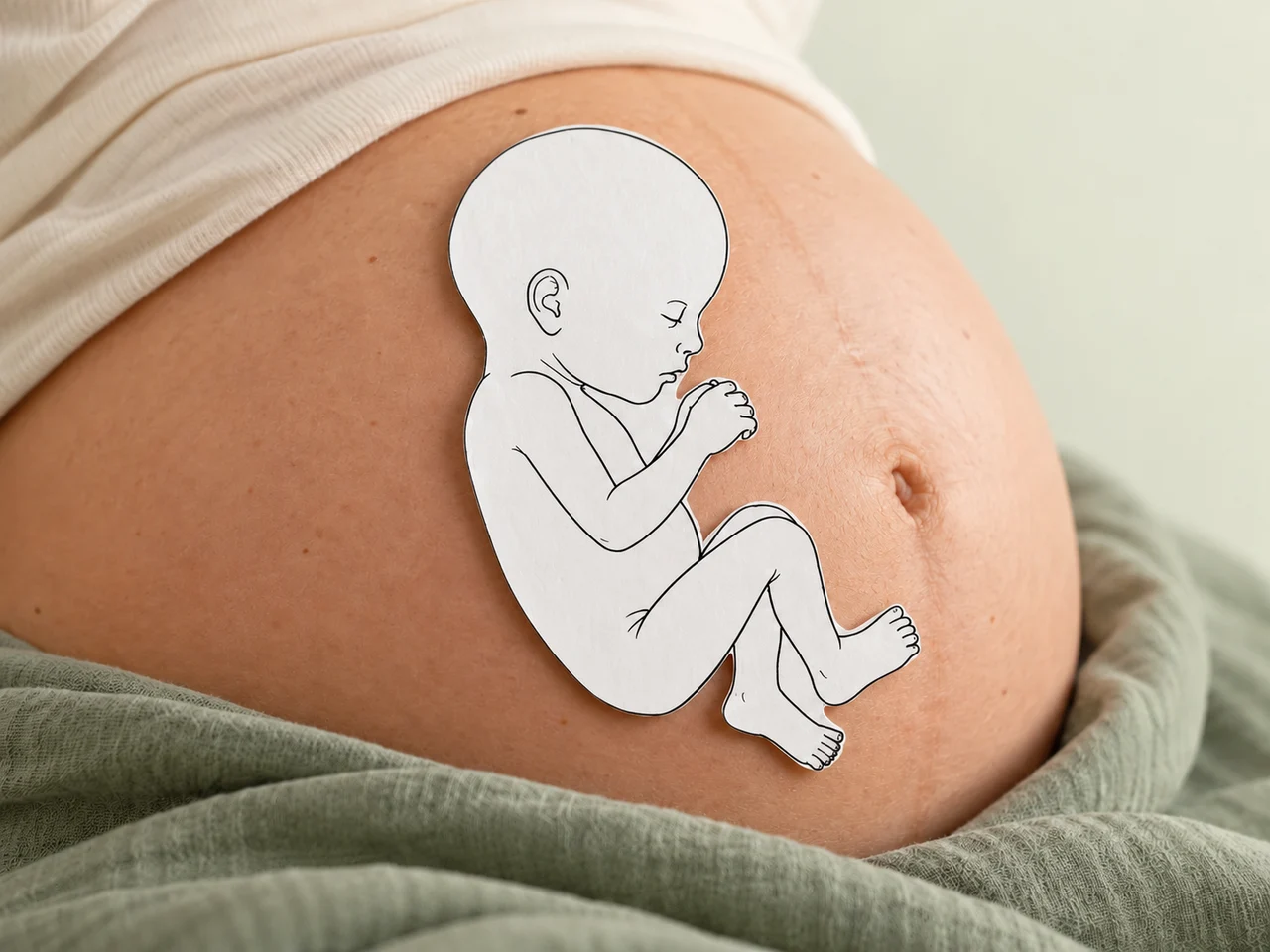
Cut along the outline and rest it gently against your bump for a sense of your baby's size.
Keep the calibrated 100% view while tracing. The outline is a size guide.
Saving images and making keepsakes ↗Checking sign-in status…
A few things to know
You'll need all four measurements and your week of pregnancy. Check your report for anything missing; don't guess or substitute another value.
After editing the measurements, select “Create illustration” again. The image changes once the new illustration is ready.
BPD is saved and shown as a label, but it doesn't change the drawing. Head circumference sets the head's overall size while the reference proportions stay the same.
Screen settings and zoom affect the displayed size. Calibrate each device you use and view at 100% to check physical length.
Not automatically. Screen calibration doesn't carry over to the download. Display and print settings affect its size, so check the image's scale bar with a ruler.
Download to keep the image on your device. Save measurements to keep the week, values and record name in your account so you can reopen them later. You can do both.
No. BabySize helps you picture size and make a keepsake; it doesn't assess development. Ask your prenatal care provider to explain your ultrasound results in the context of your care.
Understand the measurements, get the scale right and keep a memento.
Download your illustration, save measurements to revisit later or make a paper keepsake.
Check your illustration at 100% with a ruler, with tips for changing screens, downloading and printing.
A visual guide to the four ultrasound measurements and how BabySize uses them.